

Laptop screen flickering is usually caused by a display driver problem or an incompatible app, though a loose display cable or failing panel can also be responsible. Start by pressing Windows logo key + Ctrl + Shift + B, restarting, and checking whether Task Manager flickers. That result helps separate driver trouble from app trouble.
A flickering display can come from a driver, an app, a display setting, or the hardware itself, and the fix depends on which one it is. This article shows how to run a few simple tests first, then walks through safe fixes for Windows 11, Windows 10, and MacBooks. You will also learn which results suggest a repair is needed.
Key takeaways
- Test before you fix. The Task Manager test, an external monitor test, and the manufacturer’s built-in screen test each narrow the cause.
- On Windows, begin with reversible steps: restart, reset the graphics driver, check the refresh rate, and review automatic brightness options.
- Flicker on both the laptop screen and an external monitor points more toward graphics software or hardware. A steady external monitor points more toward the laptop’s own panel or cable. Neither result is proof.
- Back up your files and avoid opening the laptop. If tests suggest hardware trouble, contact the manufacturer.
What causes laptop screen flickering
Microsoft says flickering in Windows is usually caused by a display driver issue or an incompatible app. Other possible causes include display settings, connected external displays, and hardware faults such as a failing panel or damaged display cable. Hardware faults need a different fix than software problems, so identify which category you are in first.
Software-related causes
A display driver is the software that lets your operating system communicate with the graphics hardware. A faulty, outdated, or recently changed driver is the most common suspect. Other software causes include:
- An app that does not work well with your version of Windows
- A refresh rate that does not suit the display
- Automatic brightness features that change brightness while you work
- Settings or cables on a connected external display
Hardware-related causes
Hardware causes are less likely to respond to software fixes. They include a failing LCD panel, a loose or damaged cable between the screen and the motherboard, and a fault in the graphics hardware. You cannot confirm any of these by looking at symptoms alone. Testing is what separates them from software problems.
Quick checks before you change settings
Restart the laptop, press Windows logo key + Ctrl + Shift + B if you use Windows, and disconnect external displays and docks. These steps are safe, reversible, and take only a few minutes. Then note when the flicker happens, such as on battery, in one app, or constantly, because that pattern guides the next tests.
- Save your work and restart the laptop.
- On Windows, press Windows logo key + Ctrl + Shift + B to reset the graphics driver. Microsoft says this may fix the issue, and recommends a restart if it does not.
- Disconnect external monitors, docks, and USB devices, then see whether the flicker continues.
- Compare plugged-in and battery behavior for a few minutes each.
- Write down what triggers it: one app, a specific action, or a recent update.
Tests that separate software from hardware
Three tests narrow the cause: the Task Manager test, an external monitor test, and the manufacturer’s built-in screen test. No single result proves the cause, so compare all three. Each one tells you whether to keep working on software fixes or contact the manufacturer.
The Task Manager test on Windows
Press Ctrl + Alt + Delete and choose Task Manager. If it does not appear, press Ctrl + Shift + Esc instead. Then watch what Task Manager does while the rest of the screen flickers.
- If Task Manager flickers along with everything else, Microsoft says a display driver is probably the cause.
- If Task Manager stays steady while other content flickers, an incompatible app is probably the cause.
The word “probably” matters here. Treat this as a strong clue that tells you which fixes to try first, not as a final diagnosis.
The external monitor test
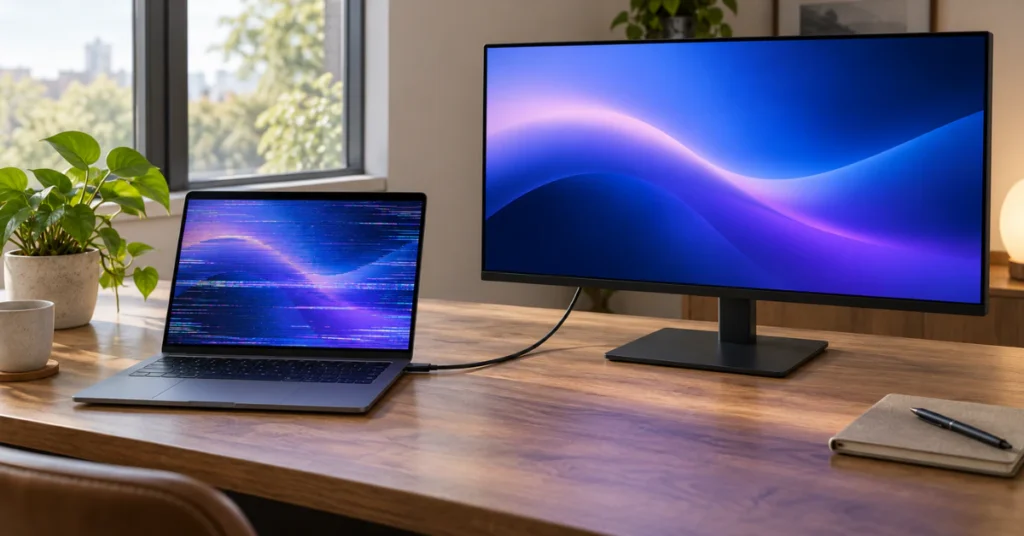
Connect an external monitor using HDMI, DisplayPort, or USB-C with display output, depending on your laptop’s ports. Dell notes that an external monitor bypasses the laptop’s built-in screen, which helps identify whether the screen itself is involved.
- External monitor steady, laptop screen flickers: The built-in panel, its cable, or a setting that affects only the built-in display is more likely. Run the built-in screen test next.
- Both screens flicker: The graphics driver, an app, or the graphics hardware is more likely. Continue with the driver steps below.
Neither result is conclusive. A driver can affect one output differently from another, and graphics hardware faults can appear on both screens.
The built-in screen test on Dell and HP laptops
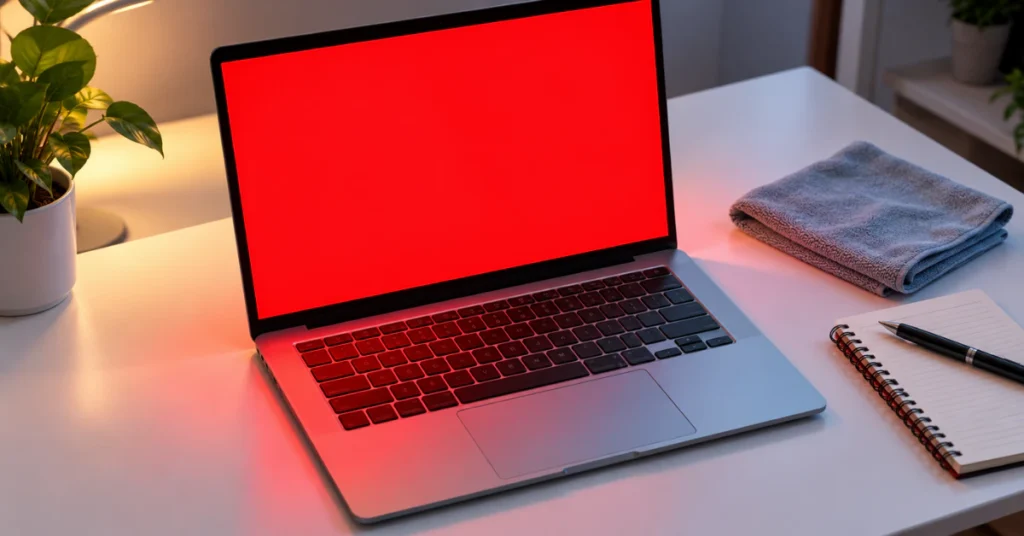
Dell laptops include an LCD built-in self-test. It checks only the screen hardware, not Windows settings or drivers.
- Shut the laptop down completely and disconnect external monitors, USB devices, docks, and headphones.
- Connect the power adapter.
- Press and hold the D key, then press the Power button. Keep holding D until colors appear.
- Watch the solid colors (black, white, red, green, and blue) for lines, spots, dark areas, or flicker.
- Press Esc to stop the test.
If the test looks clean, Dell says the problem is more likely a graphics driver, Windows setting, or software. If you see lines, dark areas, or flicker, the screen may need service. An intermittent fault may not show up in a short test, so a clean result is encouraging but not final.
On many HP laptops, restart, press Esc repeatedly about once per second, then press F2 to open HP PC Hardware Diagnostics UEFI. Open Component Tests and run the display or graphics test if your model lists one. HP updates this tool periodically, so test names can differ. Other brands offer similar tools, so check your maker’s support page for your exact model.
Extra clues that help but do not prove anything
These observations can add context to the tests above:
- Safe mode: Starting Windows in safe mode loads only basic components. If the flicker stops, a driver or software cause becomes more likely. If it continues, hardware becomes more likely. Safe mode is a clue, not proof.
- Lid movement: Flicker that changes as you slowly open or close the lid may suggest a loose or damaged display cable. A failing panel can behave similarly, so do not bend the lid to test the idea.
- Screenshots: A screenshot captures what the system draws, not what the panel physically shows. If a screenshot looks steady while your eyes see flicker, the cause may lie downstream of the operating system. This clue is not definitive.
- Phone video: Phone cameras can exaggerate or invent flicker patterns when filming screens. Judge by what you see in person, and use video only to show a technician.
Fix flickering in Windows 11 and Windows 10
Work from safest to most involved: check the refresh rate, review automatic brightness options, then roll back or update the display driver. Remove an incompatible app if the Task Manager test pointed to software. Restart after each change so you can tell which step helped.
If you cannot see the screen well enough to follow these steps, start Windows in safe mode first. Microsoft lists safe mode as an option for this situation.
Check the refresh rate
Refresh rate is the number of times per second the image refreshes, measured in hertz (Hz). The rates you see depend on your display.
- Open Settings > System > Display > Advanced display. On Windows 10, choose Advanced display settings.
- If you use more than one display, select the laptop screen first.
- Under Choose a refresh rate, select a different supported rate and choose Keep changes if the flicker improves.
Some rates carry an asterisk, which means Windows may lower the display resolution to reach that rate. If your laptop offers a Dynamic refresh rate option (Windows 11 only), try a fixed rate as a test.
Review automatic brightness options
Changing brightness automatically can look like flickering on some laptops. As a test, turn these off under Settings > System > Display > Brightness, if available:
- Change brightness automatically when lighting changes (available on some PCs)
- Change brightness based on content, set to Off (available on some Windows 11 PCs)
The content-based option can be set to Always or On Battery Only, which makes it a useful suspect if the flicker only occurs on battery.
Roll back the display driver
Microsoft recommends this first if Windows Update recently updated your device. You need administrator privileges.
- Search for Device Manager in the taskbar and open it.
- Expand Display adapters.
- Right-click your adapter and select Properties.
- Open the Driver tab and select Roll Back Driver, then Yes.
- Restart the laptop.
If Roll Back Driver is unavailable, Windows does not have a previous driver stored, so move on to updating.
Update the display driver
- In Device Manager, expand Display adapters.
- Right-click the adapter and select the Update driver.
Microsoft notes you may need to download a newer driver from your PC or graphics adapter manufacturer. Use the support page for your exact laptop model. Avoid third-party driver websites and driver-updating tools of unknown origin.
Uninstall the display driver as a last software step
If rollback and update do not help, you can remove the driver and let Windows reinstall it.
- In Device Manager, open the adapter’s Properties and select the Driver tab.
- Select Uninstall Device.
- Select Attempt to remove the driver for this device, then OK.
- Restart the laptop. Windows will attempt to reinstall the driver.
If the checkbox does not appear, Microsoft says to start the PC in safe mode and try again.
Update or remove an incompatible app
If Task Manager stayed steady while the rest of the screen flickered, focus on apps.
- Update the app. For Microsoft Store apps, check for Store updates. For other apps, check the developer’s website.
- If the flicker continues, open Start > Settings > Apps > Installed apps.
- Uninstall the most recently installed suspect app, then restart.
- Check again. Microsoft suggests repeating this one app at a time until the issue stops.
Save any data from an app before you uninstall it. You can reinstall it afterward from the Microsoft Store Library or the developer’s website.
Fix flickering on a MacBook
On a MacBook, update macOS, disconnect external displays, and restart in safe mode to see whether the flicker continues. If it disappears in safe mode, software is more likely involved. If it persists, run Apple Diagnostics and contact Apple Support.
- Back up with Time Machine, then install updates from System Settings > General > Software Update (macOS Ventura or later).
- Disconnect any external display. If the flicker stops, check the external display’s refresh rate and resolution under System Settings > Displays, and try a different cable or adapter.
- Restart in safe mode. On Apple silicon, shut down, press and hold the power button until startup options appear, hold Shift, and select Continue in Safe Mode. On Intel Macs, hold Shift while the Mac starts. You should see “Safe Boot” in the menu bar.
- If the flicker continues, run Apple Diagnostics following Apple’s instructions for your model.
Safe mode helps narrow the cause but does not prove it. If the flicker also appears on an external display, the fault may sit deeper in the system.
Symptom and next-step table
Use this table to match what you see with the most sensible next step. The “possible cause” column lists explanations, not confirmed faults.
| Symptom | Possible cause | Next step |
| Task Manager flickers with the rest of the screen | Display driver (probable, per Microsoft) | Reset the graphics driver, then roll back or update the driver |
| Screen flickers but Task Manager stays steady | Incompatible app | Update, then uninstall recently installed apps one at a time |
| Flicker only on battery | Power-related brightness features | Turn off automatic brightness options as a test, if available |
| Laptop screen flickers, external monitor steady | Built-in panel, display cable, or built-in display setting | Run the manufacturer’s screen test and contact support if it fails |
| Both laptop and external screen flicker | Graphics driver, software, or graphics hardware | Roll back or update the driver and test in safe mode |
| Flicker only with an external monitor connected | Cable, adapter, or refresh rate mismatch | Try another cable and a different supported refresh rate |
| Flicker changes as the lid moves | Possible loose or damaged display cable | Stop moving the lid and contact the manufacturer |
| Built-in screen test shows lines or flicker | Panel or related hardware fault | Back up your files and request service |
When flickering needs a professional repair
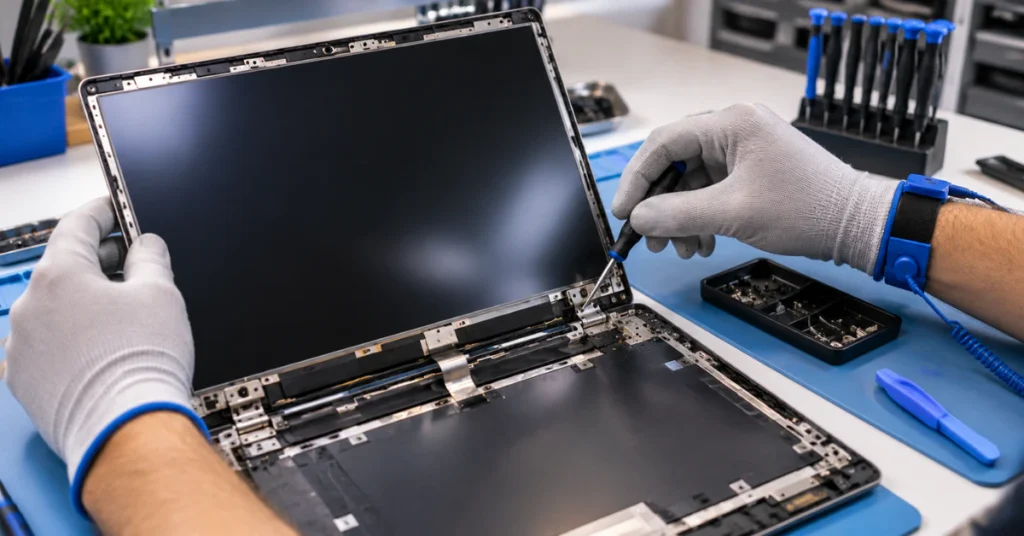
Contact the manufacturer or an authorized repair provider if flicker continues after software fixes, appears in the built-in screen test, changes with lid movement, or comes with lines, dark patches, or cracks. Opening a laptop yourself can damage it and may affect warranty coverage, so avoid it unless the maker’s guide for your model allows it.
Before you contact support:
- Back up important files.
- Write down when the flicker happens and which tests you ran.
- Take a photo of any lines or error patterns, since support teams find this useful.
- Check your warranty status. Coverage for physical damage varies by maker and plan.
- Skip BIOS or firmware updates unless the manufacturer’s support instructs you to, because a failed update can leave a laptop unable to start.
- Skip factory resets at this stage. They erase data and cannot repair a faulty panel.
If your device is a Microsoft Surface, check Microsoft’s Surface-specific display guidance, since the steps differ from standard laptops.
Frequently asked questions
Why does my laptop screen flicker only on battery?
Some laptops adjust brightness automatically to save power, and Windows 11 lets some PCs apply content adaptive brightness only on battery. Rapid adjustments can look like flickering. Turn those options off under Settings > System > Display > Brightness as a test. If the flicker continues, move on to the driver and hardware tests above.
Can a Windows update cause screen flickering?
Yes, if the update installed a display driver that does not suit your hardware. Microsoft advises rolling back the display driver when Windows Update recently updated the device. Roll Back Driver appears in the adapter’s Properties window under the Driver tab. If it is unavailable, Windows has no earlier driver stored, so try the laptop maker’s driver.
Does flickering mean my laptop screen is broken?
Not necessarily. Microsoft says Windows flickering is usually caused by a display driver issue or incompatible app, both fixable without repair. A broken panel becomes more likely when flicker appears in the manufacturer’s built-in screen test, shows lines or dark patches, or continues on the laptop screen while an external monitor stays steady. A technician should confirm the cause.
Is it safe to keep using a flickering laptop screen?
Flicker alone does not prove the laptop is failing, but the cause is unknown until you test it. Back up your files soon in case a hardware fault worsens. If the screen goes dark, shows spreading lines, or the flicker becomes constant, stop troubleshooting and contact the manufacturer. An external monitor can keep you working meanwhile.
Should I replace the laptop screen or cable myself?
Beginners should usually avoid it. Opening a laptop can damage fragile display cables, create electrical hazards, and affect warranty coverage. Check your warranty first, then contact the manufacturer or an authorized repair provider. If you still want to try, follow the maker’s service manual for your exact model, including its instructions for disconnecting power and the battery.
Does the Task Manager test work on a MacBook?
No. The Task Manager test comes from Microsoft’s Windows guidance and does not apply to macOS. On a MacBook, compare behavior with an external display connected and disconnected, then restart in safe mode. If the flicker continues in safe mode, run Apple Diagnostics and contact Apple Support.
How do I tell whether the display cable is the problem?
You cannot confirm it without inspection. Clues include flicker that changes as you slowly move the lid, a steady external monitor, and flicker in the manufacturer’s built-in screen test. These clues may also fit a failing panel, so a technician should diagnose it. Avoid bending the lid or pressing on the screen to test the theory.
Conclusion
Start with the safe steps: restart, reset the graphics driver on Windows, and disconnect external devices. Run the Task Manager, external monitor, and built-in screen tests, then compare what they show. Fix software causes in order, using Roll Back Driver or an official driver update before anything more drastic. If the tests point to hardware, back up your files and contact the manufacturer.
Disclaimer
This article offers general troubleshooting guidance, and menus, settings, and shortcuts vary by model, operating system version, and manufacturer. Back up important files before changing drivers, uninstalling apps, or sending a device for repair, since any of these can risk data loss. If the problem persists or you suspect hardware damage, contact the manufacturer or an authorized repair professional.